Select your product to confirm this information applies to you
How Do I Set Up Which Notifications Display on My Garmin Device?
Review the following FAQ to learn about how notifications can be managed on your Garmin® device. Select a topic below for more information.
On-Device App Notification Settings
Select watches offer the ability to customize individual app notification settings directly from the watch, without impacting how notifications are delivered on your connected smartphone. Blocking the apps on the watch will prevent notifications from being delivered on a per-app basis. Notifications can also be blocked in specific focus modes while remaining enabled in others. See below for steps to configure app notifications on the watch:
NOTE: This feature is only available on newer watches and requires the latest software. Other watches will only be able to toggle notifications for Apps as a whole, with no ability to block specific apps.
Access the menu of your watch.
Select Settings.
Select Notifications & Alerts.
Select Smart Notifications.
Select Apps.
Scroll to or select Connected Apps.
Select an app.
Toggle the status to Allow or On.
Repeat these steps for each app you want to receive notifications from. Apps can also be blocked in specific focus modes only. If your watch does not have controls for specific apps, see the sections below for instructions to manage individual app notifications on your watch.
Android Phone Settings
Open the Garmin Connect™ app.
Select More (bottom right).
Select Settings.
Select Notifications.
Select App Notifications.
Now toggle to enable/disable all smart notifications or customize by selecting individual apps.
Huawei Users
Update the software on your Garmin device and adjust your Huawei phone's "App Launch" settings so Garmin Connect can run in the background. Steps differ by model; check your phone manual or contact your carrier for instructions.
Swipe down from the top of the home screen.
Select the
 Settings icon.
Select Battery.
Select App Launch.
Select individual or batch select apps, where auto, secondary, and run-in-background settings can be disabled/enabled individually.
NOTE: You will want to select Disable for Garmin Connect if you are selecting individual apps.
How to Customize Notifications using an Android:
iOS Phone Settings
These instructions apply to iOS 16 or higher. Apple® requires these settings to display notifications on connected Bluetooth® devices.
IMPORTANT: For app notifications you do not want to receive on a Garmin device but do want to receive on the phone lock screen, uncheck Notification Center.
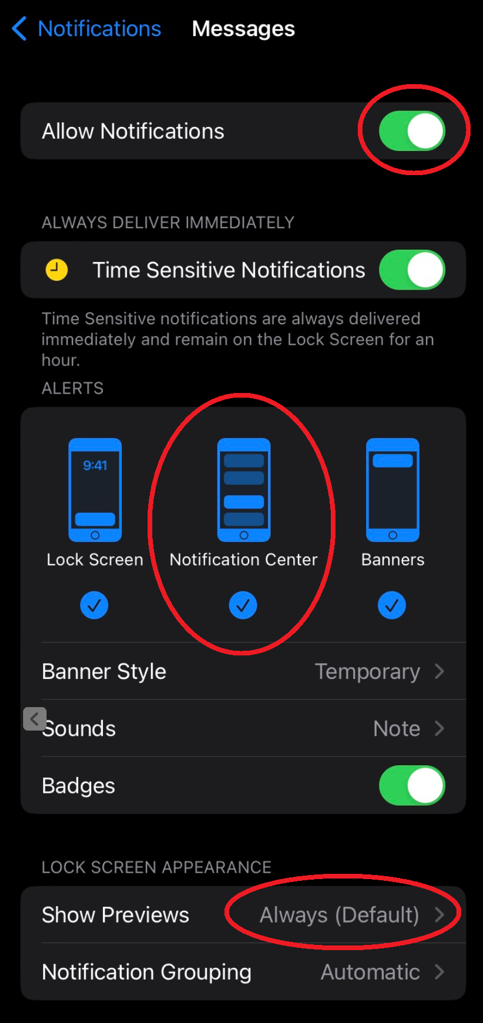
Follow the steps below for each app you want to receive notifications from on your Garmin device. Below is an example for Messages.
Select Notifications from the iPhone settings.
Select an application you want to receive notifications from. In this example we will select Messages.
Toggle Allow Notifications on.
Ensure the Notification Center has a checkmark
 .
.Ensure Show Previews is set to Always (Default) or When Unlocked.
Following the steps above will result in your phone looking like this:
Setting Notifications to Show on the Watch but Not the Lock Screen on iOS
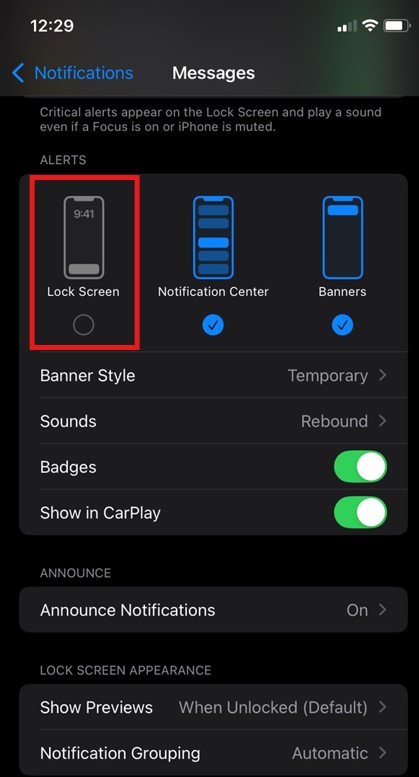
Follow the steps below if you want notifications to only show on the watch and not on the lock screen of your phone.
Select Notifications from the iPhone settings.
Select an application you want to receive notifications from. In this example we will select Messages.
Toggle Lock Screen off.
Following the steps above will result in your phone looking like this:
How to Customize Notifications Using an iPhone: